COS 3100:
Intro to GIT
menu ▾
lessons
tags
extras
links
syllabus
homeworks
online terminal
view full lesson
lessons
tags
extras
links
syllabus
homeworks
online terminal
view full lesson
## 9. Advanced git features Finding specific commits, using multiple working trees and submodules --- ## Referencing commits There are many ways to get to a commit.  ```bash master^ # E (parent commit) master~3 # A (third ancestor) C^^ # A (parent of parent) B~1 # A (parent) ^B # everything except A and B ``` --- *parents* vs *ancestors* 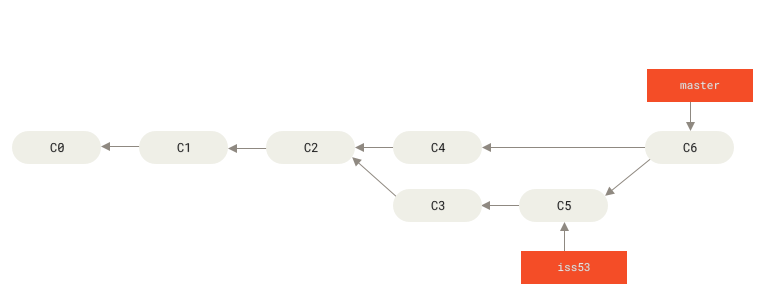 ```bash master^ # C4 -- first parent of a merge commit master^2 # C5 -- second parent of a merge commit iss53~2 # C2 -- second ancestor (the parent of the parent) master^2~1 # C3 -- the parent of the second parent ``` --- ## Reflog Use `reflog` to see the "move history" of a given ref (branch or HEAD). I.e. what commits did the given ref point to in time (as opposed to what is the lineage of given commit). ```bash # assumes HEAD by default git reflog # or given a specific ref git reflog master # same as git log -g master ``` --- This adds yet another way to reference commits: ```bash # which commit did master point to 3 moves ago master@{3} # which commit did HEAD point to 5 days ago # i.e. what was I working on 5 days ago? HEAD@{5.days.ago} ``` --- ## Reset `git reset` has 3 modes of operation. This determines what you allow it to change | Mode | Worktree | Staging | HEAD | | --- | --- | --- |--- | | --soft | ❌ | ❌ |✔️ | | --mixed | ❌ | ✔️ |✔️ | | --hard | ✔️ | ✔️ |✔️ | --- ## Reset modes - **soft**: only change which commit the current branch points to - **mixed** (default): move the branch and update the staging area. *(this is why we can use it to unstage changes)* - **hard**: move the branch and update both staging and the worktree <class-note> A hard reset can lead to losing uncommitted changes </class-note> --- ## Reset vs checkout Checkout is very similar to `git reset --hard` with a couple of key differences: - checkout does NOT destroy uncommitted changes in the working directory - checkout modifies HEAD itself but not the branch that HEAD points to --- ## Blame `blame` allow us to understand who and when made changes. ```bash # display which commit last changed each line of my-file git blame my-file # limit the output to specific line range git blame -L 5,10 my-file # display changes to a my-file commit by commit git log -p -- my-file ``` --- ## Signing commits While git requires the user to provide basic identity information (name, email), by default git does **NOT** guarantee that commit author is who they say they are. --- For projects that require extra security, each commit can be signed. This is possible by using git in conjunction with `gpg` and the `-S` flag: ```bash # create a signed commit using the configured pgp key git commit -S -m "you can be sure I made this commit" # displays signature information for each commit git log --show-signature ``` --- <class-note> We will not cover the details of how to setup or use gpg keys, but I've linked additional resources and guides if you are curious. </class-note> --- ## Tags Tags can be used to mark important milestones in a project's history (such as release versions e.g. v1.0) --- Git supports 2 types of tags: - **Lightweight** - very similar to a branch, but cannot be changed - **Annotated** - similar to a signed commit, but holding additional tagging details --- ### Lightweight tags The main difference between a Lightweight tag and a branch is that tags **CANNOT** be changed to point to a different commit. ```bash # tag the current commit as v2 git tag v2.0.0 # tag a previous commit in the history git tag v1.0.0 7ca1be ``` --- ### Annotated tags Annotated tags create their own object (similar to a commit). They can be signed (like commits). They **CANNOT** be moved as well. ```bash # create a unsigned annotated tag # notice annotated tags have their own message git tag -a v2.3.0 -m "Release v2.3: Blue Kiwi" # create a signed annotated tag git tag -a -s v2.5.0 -m "Notes for version 2.5" ``` --- ### Manipulating tags ```bash # list all tags (both Lightweight and annotated) git tag # list all tags matching pattern git tag -l v2* # delete a tag git tag -d v1.75-tmp ``` --- Tags are NOT shared by default, you have to push them explicitly: ```bash # push all tags to the origin remote git push origin --tags # push tag v2.0 to the remote called github git push github v2.0 # delete a tag on a remote git push origin --delete v2.0 ``` --- ## Bisect Bisect allow us to find which commit introduces a bug (or any specific behaviour we might want to pinpoint). It uses a binary search to jump around the project history, allowing you mark whether the selected revision is either `good` or `bad` --- Bisect will try to choose the minimum number of commits you need to review. ```bash # start the bisect process with the current commit git bisect start # mark the current commit as bad i.e. containing the bug git bisect bad # mark a commit as good i.e. not containing the bug git bisect good 25aef7 # return to the initial commit (before the bisect) git bisect reset ``` --- You can use an appropriate command to automatically validate if the commit is good or bad. (e.g. compile the code, run tests or performance benchmarks) ```bash # execute the given script to mark # commits as good or bad # based on the exit status of the script git bisect run my-test-command ``` --- ## Multiple work-trees Git allows you to have multiple versions checked-out at the same time: ```bash # creates a branch called bugfix and checks it out # into a working directory called bugfix # in the parent of the current directory git worktree add ../bugfix # checkout branch origin/broken into a # separate working directory in your home directory git worktree add ~/my-project-bugfix origin/broken ``` --- ```bash # list all worktrees git worktree list # delete a worktree, needs to be clean # the corresponding branch is still # part of the project history git worktree remove bugfix ``` --- Each worktree is a linked copy of the repository that maintains its own state while sharing the same object database, ensuring all trees stay synchronized with the main repository. --- ## Multiple histories Sometimes it might be useful to start a branch that is completely disconnected from the project's existing history. --- This is useful when you want to keep track of a set of related files that change semi-independently from the main-line history of the project (e.g. build artefacts) --- ```bash # create an orphan branch called deploy # there are NO commits on this branch git checkout --orphan deploy ``` The state of the worktree is unchanged, but all files will be untracked. --- ### Use case: deploy branch After creating a disconnected (orphan) branch, you can delete or ignore all "regular" project files, committing only your `output` / `build` directory. --- By committing these artefacts separately, you avoid needing to resolve conflicts in them when modifying the main-line code. But also, the artefacts stay versioned and within the same repository. > This *was* the most popular way of setting up github pages, until the introduction of `Github actions` --- ### Use case: cleaner public history When publishing / open sourcing a project it might not be appropriate to publish the full history of commits. --- In these cases an orphan branch can be used to established a *"cleaner"* history that you can comfortably share on the internet while keeping the full history intact. You can then push each line to its own remote (public and private). --- ## Submodules If you put a git repository inside another git repository, the top-level is called a `superproject`. The nested repository is called a `submodule`. --- Each repository will have its own independent history. The superproject stores only the sha of currently checkout commit of each submodule. --- This is useful when importing the code for a dependency (e.g. a library) and you want to have fine-grained control over which version you want to use. It is also useful when you want to work on several projects together, but keep their histories separate. --- ```bash # add an existing repository as a # submodule of the current repo git submodule add path/to/other/repo # clone a repository including all submodules git clone --recurse submodules ``` --- <class-note> Knowing something exists does NOT mean you have to use it. In most day-to-day git use-cases, you would not need to use the features discussed in this section. But in that one situation when you need it - you will know! </class-note>
Scripting with bash
::
Exploring git workflows
Scripting with bash
::
Exploring git workflows